
DRPU Barcode Label Maker - Professional Screenshots
To design barcode labels for professional edition follow the below steps:
Step1: In Quick Barcode Mode, select the barcode then input barcode data.
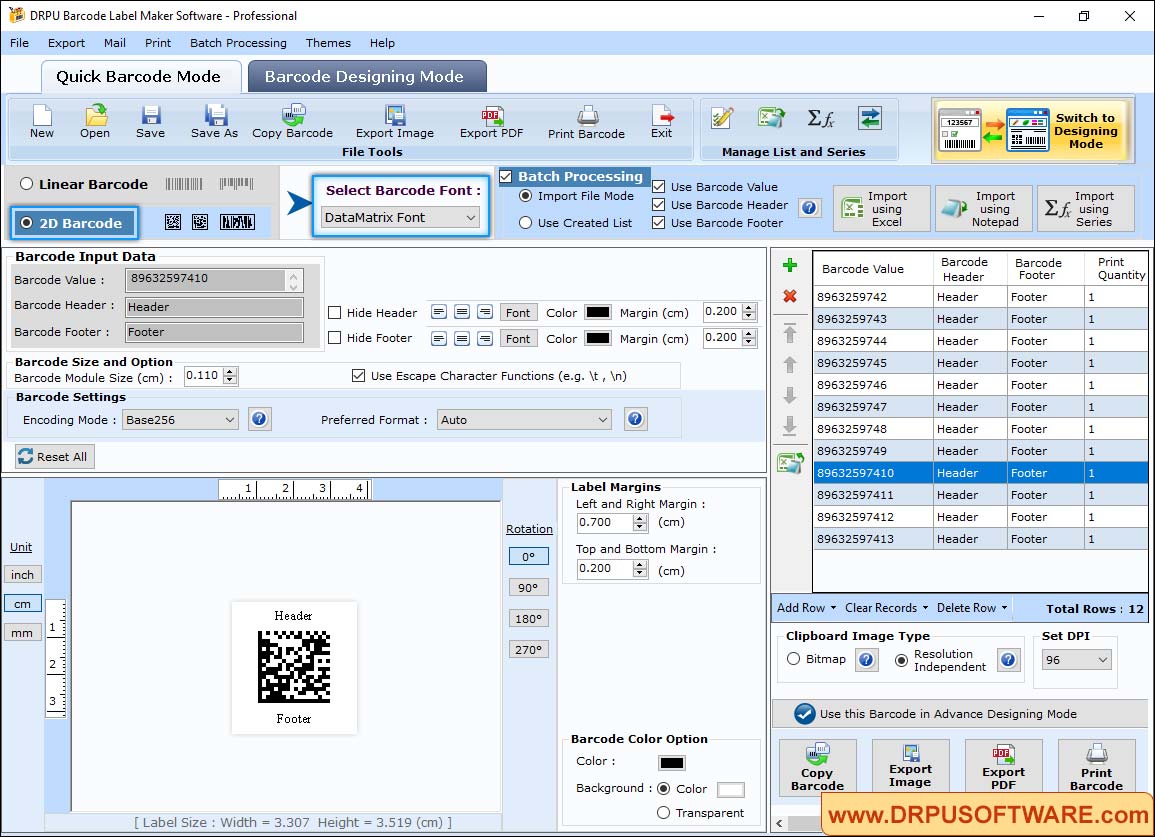
- Select 2D Barcode Font (DataMatrix Font) as shown in above figure
- Select Batch Processing to create the data for designing label
- Change Label margins, color option and rotation of barcode
- You can also switch this barcode into advance designing mode
Step2: In Barcode Designing Mode, Go to Text Properties and select Batch Processing to add data on labels.
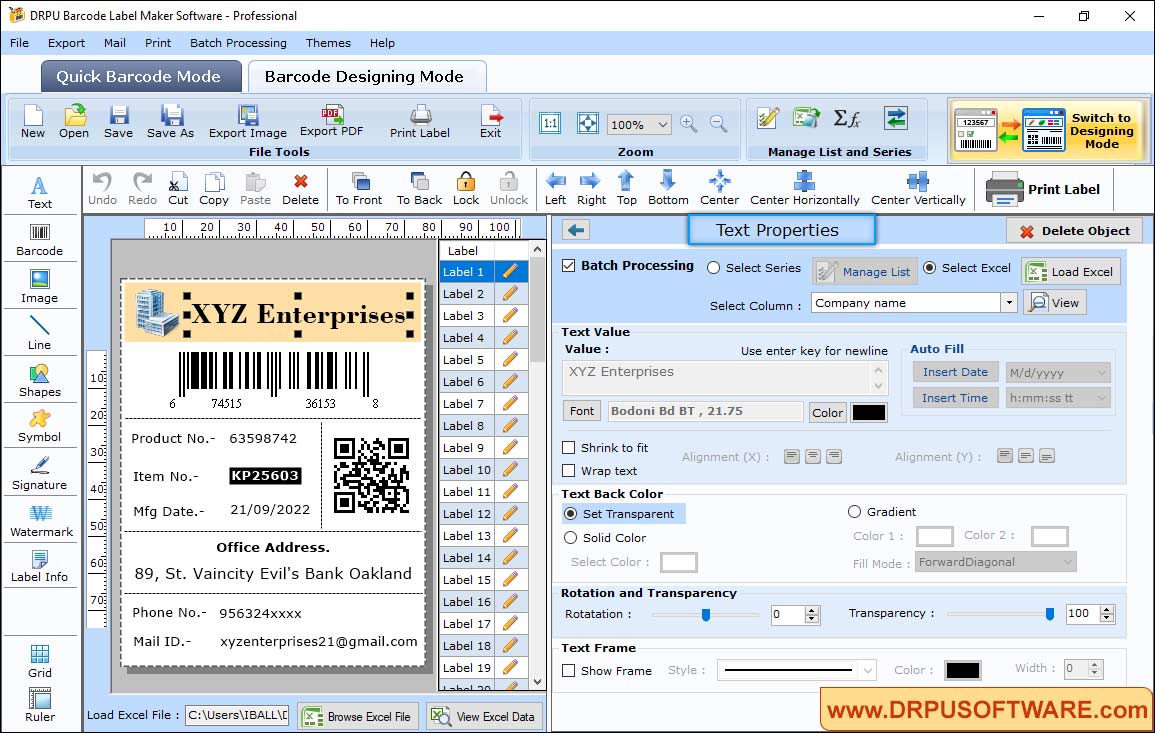
Using Text Properties, edit the text such as change the text back color, rotation and transparency. You can also set the alignment of text as per design.
Step3: Click on barcode to open the Barcode Properties
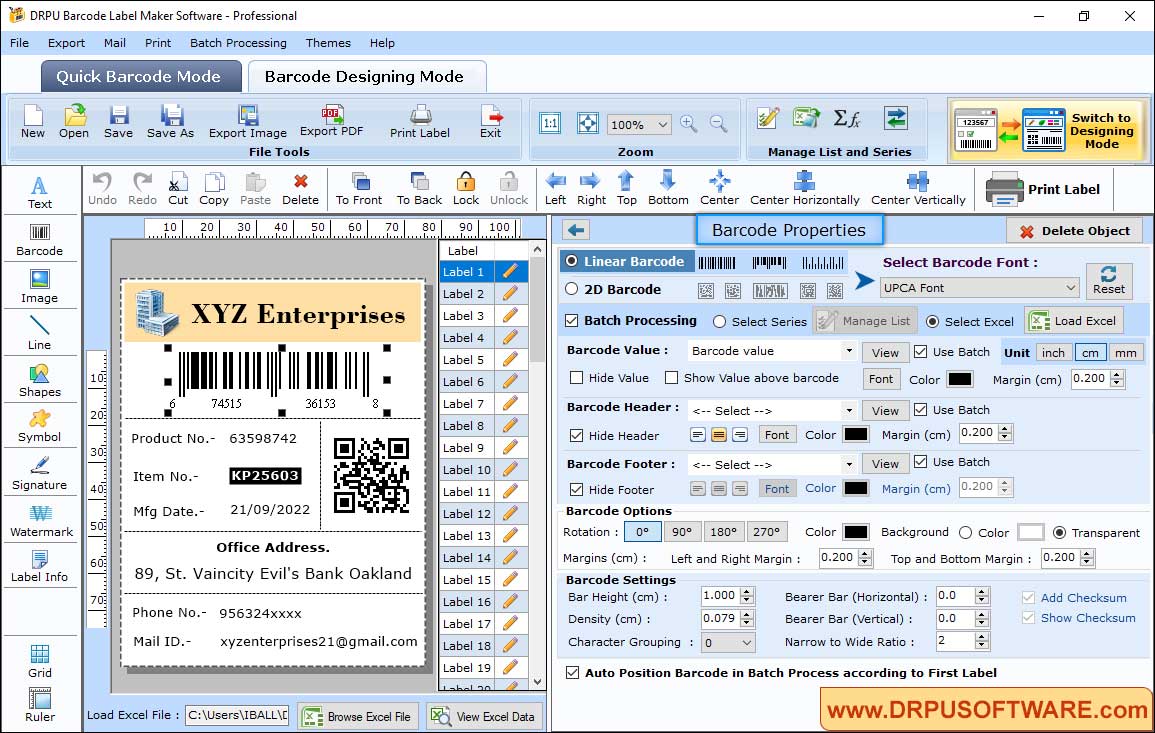
- Select Linear Barcode Font UPCA Font
- Load Excel file to fetch the data
- Hide or show barcode header, footer and value according to design
- Change bar height, character grouping in Barcode Settings
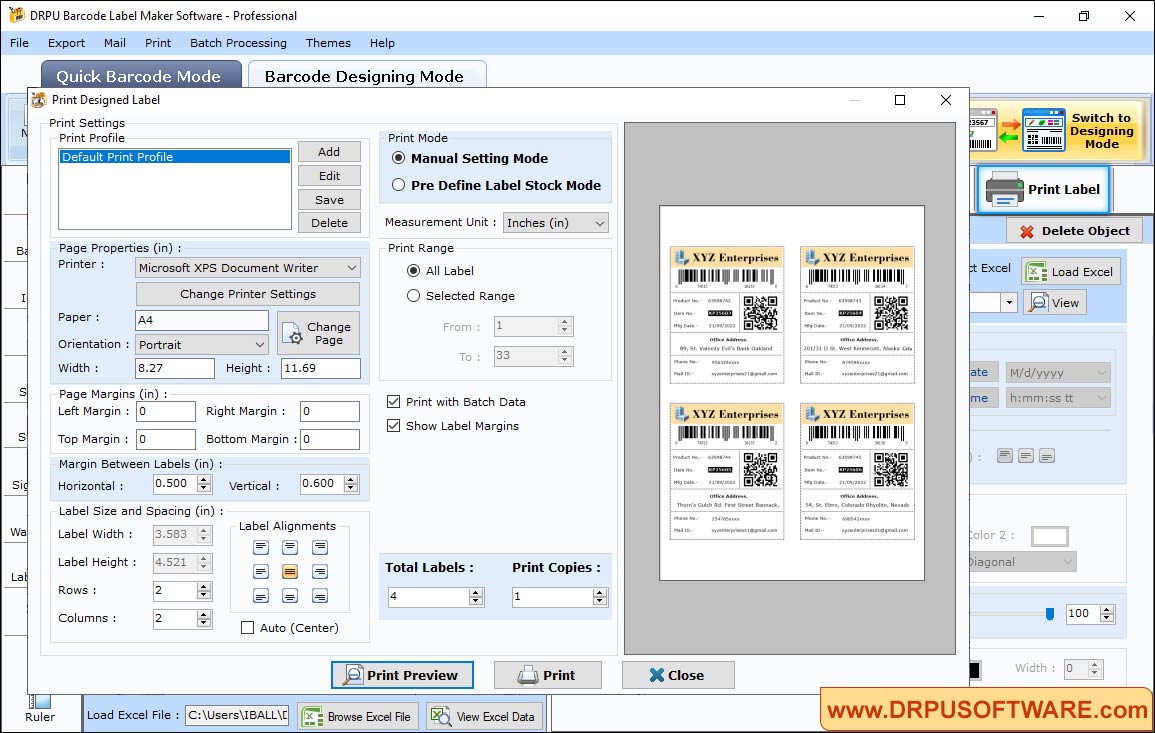
Step4: Choose any one Printing Mode either 'Pre Define Label Stock or 'Manual' to print designed barcode labels.
Other Barcode Software :-

Barcode Label Maker Software

MAC Barcode Maker - Standard

MAC Barcode Maker - Corporate

Barcode Label Maker - Corporate Edition

Barcode Label Software - Professional

Barcode Software for Publishers and Library

Barcode Software for Health Care Industry

Barcode Software for Post office and Banks

Barcode Software for Packaging and Supply

Barcode Software for Industrial Business

Barcode Software for Inventory Control